Will My Image Print Clearly? A Guide to Photos, Canva Files and AI Artwork for Posters, Signs and Banners
A sharp screen preview does not always mean a sharp print. Learn what to check before enlarging photos, Canva designs and AI artwork for posters, signs and banners.
By We Print Today · Published 2026-10-29
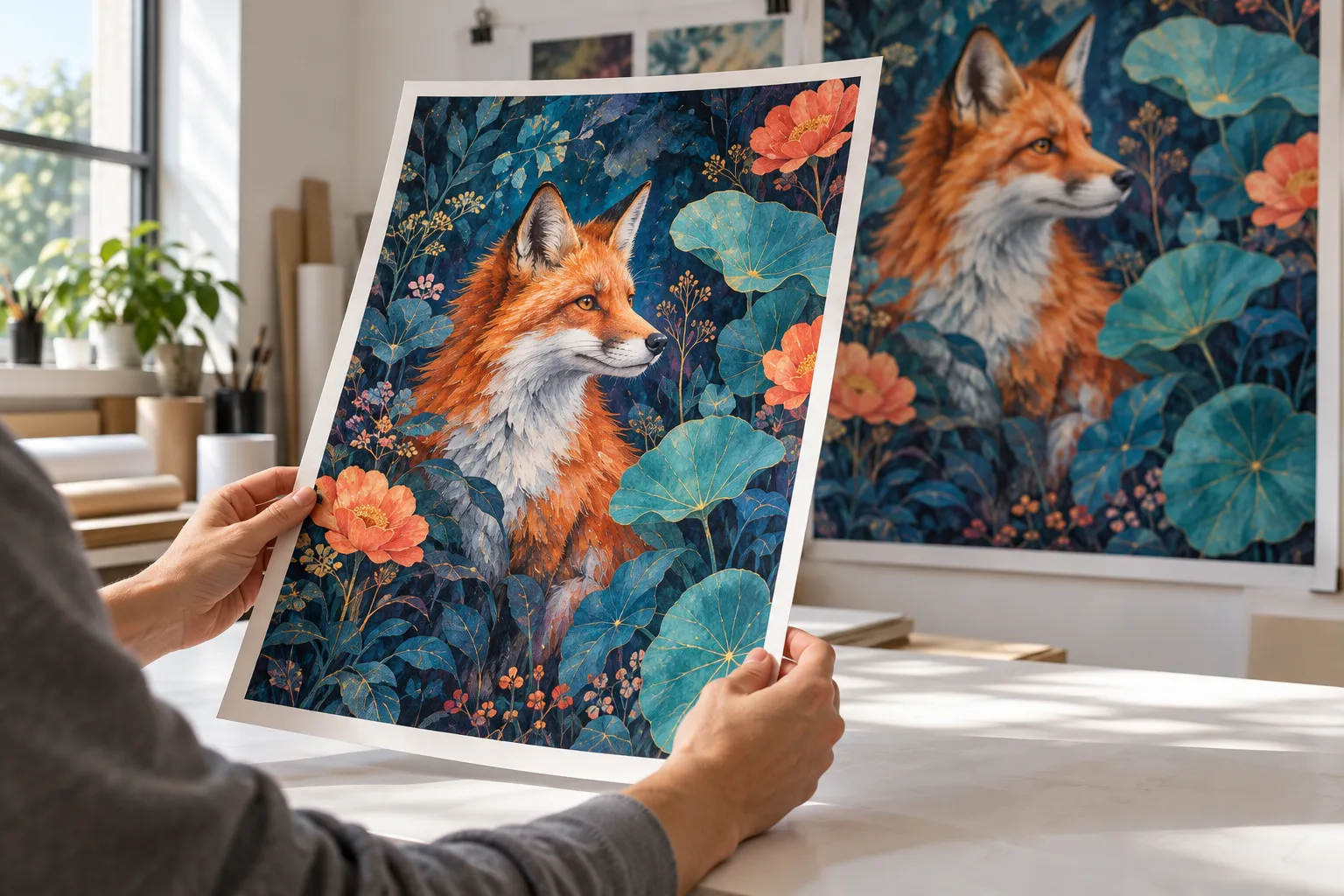
A photo can look sharp on your phone and still print blurry on a large poster. A Canva design can have crisp lettering but a fuzzy background. And an AI-generated image can look impressive on screen without containing enough detail for a four-foot banner.
The best way to judge a file is to consider three things together: its pixel dimensions, the size you want to print it, and how closely people will view it. Here’s what to check before ordering your next poster, sign or banner.
Why enlarging an image changes its appearance
Photos and most AI-generated images are made from tiny squares called pixels. When you enlarge an image, those same pixels cover more space. Fine details can become soft, edges can look jagged, and compression marks that were barely noticeable on screen can become obvious.
Start with the original, highest-quality file available. A screenshot, social media download or image copied from a website may contain fewer pixels or more compression than the original. Saving that image as a PDF does not restore the missing detail.
What resolution do you need for a poster or banner?
For images viewed closely, around 300 pixels per inch at the final printed size is a useful target. Large displays viewed from several feet away can often work at lower resolutions. Small lettering and fine details need more care than a broad photographic background.
You may hear this described as “300 DPI.” Technically, PPI describes the image’s pixels per inch, while DPI describes a printer’s dots per inch. For preparing your artwork, the useful number is how many image pixels you have for each inch of the finished print.
For example, an image that is 3,600 × 5,400 pixels provides:
- 12 × 18 inches: 300 PPI
- 18 × 27 inches: 200 PPI
- 24 × 36 inches: 150 PPI
- 36 × 54 inches: 100 PPI
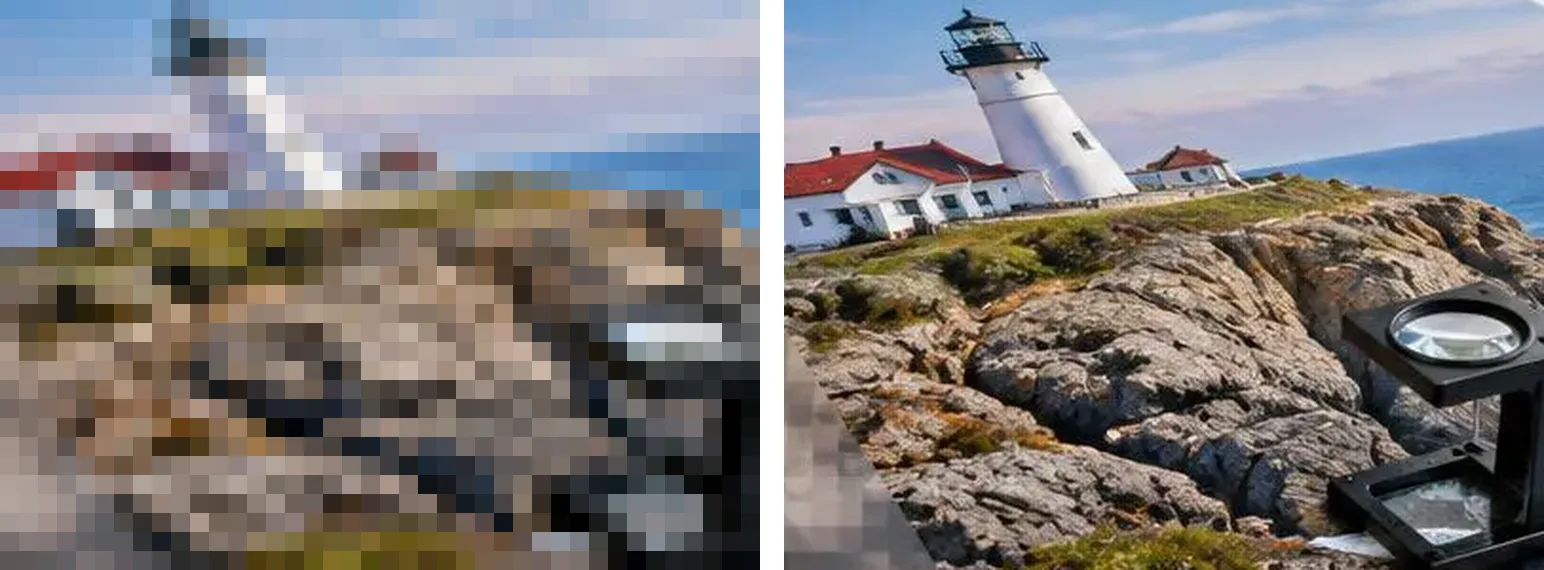
Illustration of how reduced image detail can affect an enlargement. Actual results depend on the source file, print size and viewing distance.
These are calculations, not quality guarantees. An out-of-focus photo will still look soft even if its pixel count is high. Cropping also removes pixels, so check the portion you plan to use.
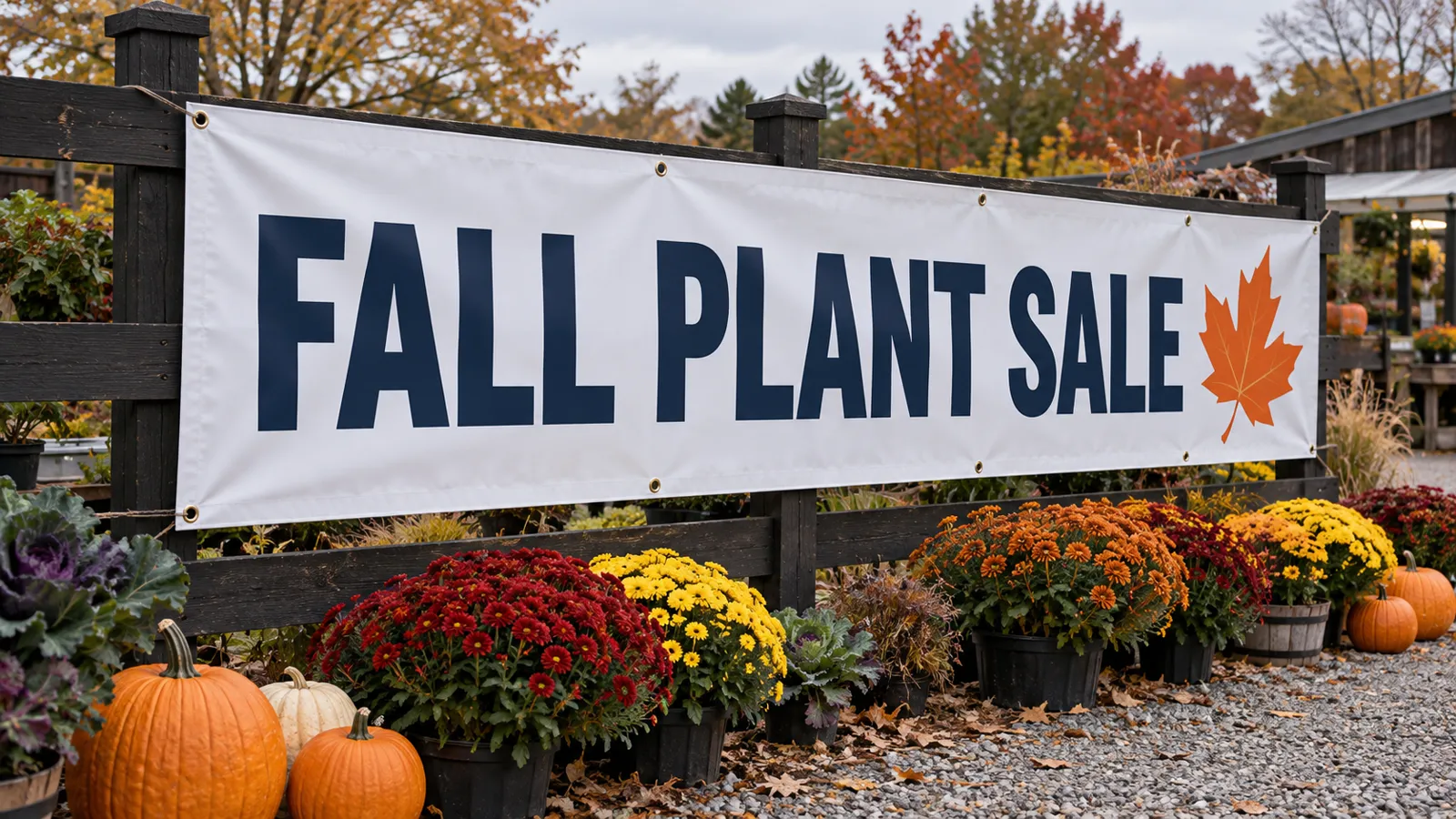
For posters and large-format printing, tell us whether people will examine the print up close or see it across a room. For custom signs and banners, include where the display will be used and its approximate viewing distance.
Does changing a file to 300 DPI improve it?
Changing the resolution setting without adding pixels does not add detail. A 1,200-pixel-wide image printed 24 inches wide still provides only 50 pixels per inch, regardless of what its resolution label says.
Resizing software can add pixels through a process called resampling. AI enlargement tools may also improve the appearance of some images, but they estimate or generate detail. They cannot reliably recover the original lettering, facial features or textures that were never captured.
Send the original file before spending time trying to enlarge it. A smaller print, a different photo or a revised layout may give a better result.
How to prepare a Canva design for printing
Canva can produce excellent print files when the design is set up correctly. Start with the intended finished dimensions rather than enlarging a social media graphic later.
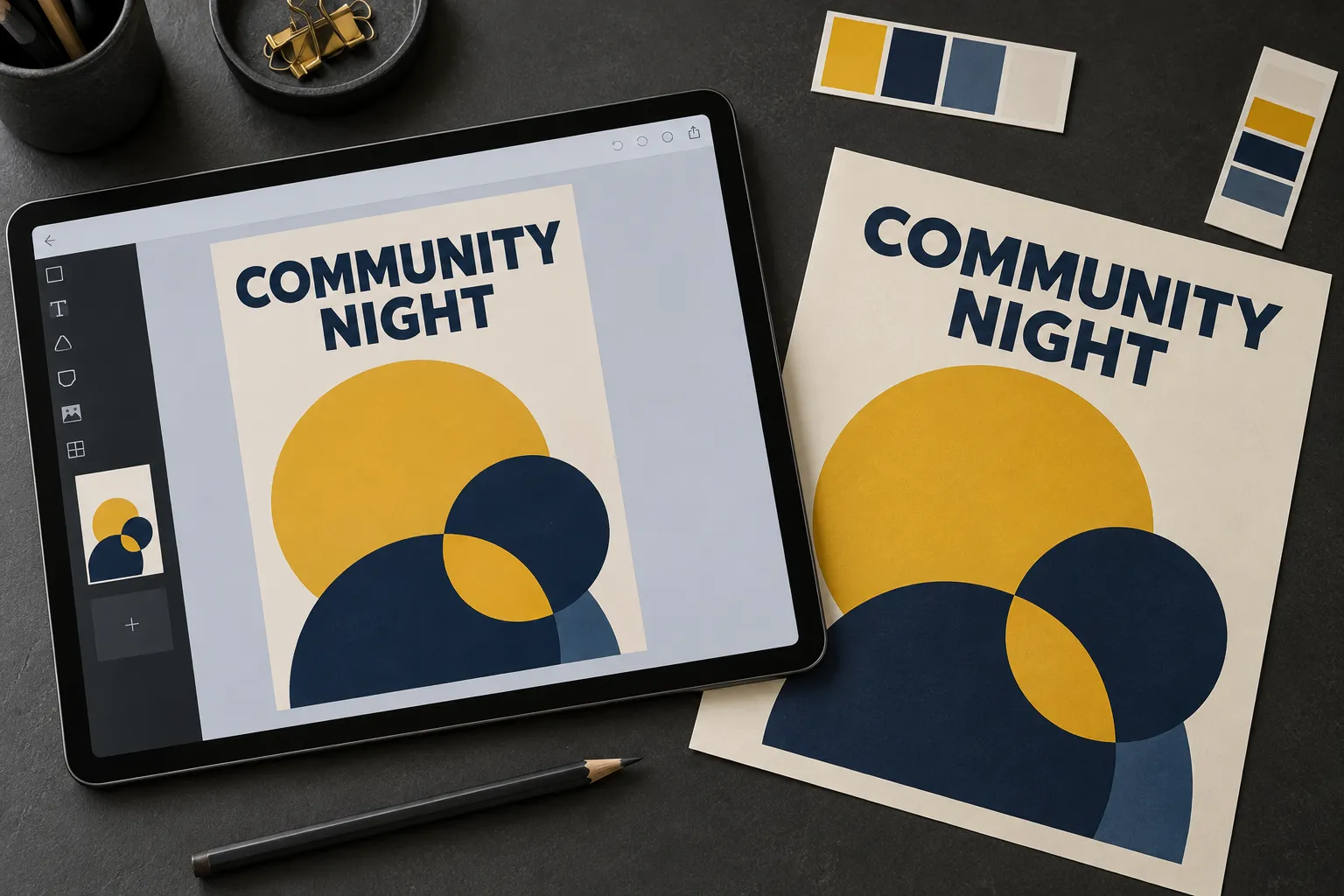
Before downloading:
- Check that the design’s width and height match your order, or tell us if you built it at a reduced scale.
- Use original, high-quality photos. Stretching a small image inside Canva does not create more detail.
- Keep text and logos away from the trim edge. Banners may need extra clearance for hems and grommets; ask us before finalizing the layout.
- If the background should reach the edge of a trimmed print, extend it into the bleed area.
- Choose PDF Print when downloading. Confirm the required bleed, crop marks and color settings with us for your specific product.
A PDF Print export is preferable to a screenshot of your design, but it cannot fix a low-resolution photo already placed in the layout. Read more about printing your Canva designs, or follow our step-by-step Canva export guide.
Can AI-generated artwork be printed clearly?
Yes, when the downloaded file has enough detail for the intended size. Treat an AI image like any other image file: check its actual pixel dimensions rather than relying on words such as “HD,” “4K” or “print ready” in the prompt.
For example, a 1,024 × 1,024-pixel image printed 24 inches square provides about 43 PPI. That may look acceptable as a distant background, but it is unlikely to reproduce fine detail cleanly when viewed up close.
Download the original output rather than taking a screenshot of the preview. Inspect faces, hands, product details and lettering. Enlarging the artwork may make visual errors more noticeable.
For signs and promotional pieces, add important text separately in Canva or another layout program. Check names, dates, phone numbers and spelling yourself. This also makes corrections easier than trying to edit lettering embedded in an image.
Why your logo file matters
A true vector logo uses paths rather than a fixed grid of pixels, so it can scale without becoming pixelated. An original vector PDF, SVG, AI or EPS file is usually a better starting point than a small JPG copied from a website.
The extension alone is not proof: a PDF can contain a low-resolution picture of a logo. If you have the original file from your designer, send that version.
Check a sample before committing to a large print
A screen preview helps with spelling and layout, but it cannot fully show the finished print’s sharpness, paper texture or color. Screens emit light; printed materials reflect it, so colors can differ.
If image quality is especially important, ask about a printed sample of a small section at the final output size. This can help you judge faces, lettering and fine detail before producing the entire piece. Sample availability, cost and timing depend on the job.
A note about customer-supplied artwork
The quality of your supplied file affects the finished print. Please review your artwork carefully, including image clarity, spelling and any AI-generated details. We can help assess whether a file suits your intended size, but printing cannot remove blur, pixelation or errors already present in the artwork. Any editing, enhancement or rebuilding through our graphic design and artwork preparation services should be discussed and quoted before production.
Not sure whether your file is large enough?
Not sure whether your artwork will print clearly? Send us your file with your finished dimensions, quantity and needed-by date, or request a printing quote. If your artwork is built at a reduced scale, include that information too.
WE PRINT TODAY™ serves Kingston, Plymouth, the South Shore and customers nationwide. Call 781-585-6021 to discuss your poster, sign or banner.
Include the finished dimensions, quantity, needed-by date and how the print will be displayed. Request a printing quote
Contact We Print Today: Phone 781-585-6021 · Fax: 781-585-8201 · info@weprinttoday.com · 66 Summer Street, Kingston, MA 02364.